Identify your professor
Know the specific professor you work with so you can name them in Comments.
FSU Computer Science Resource Guide
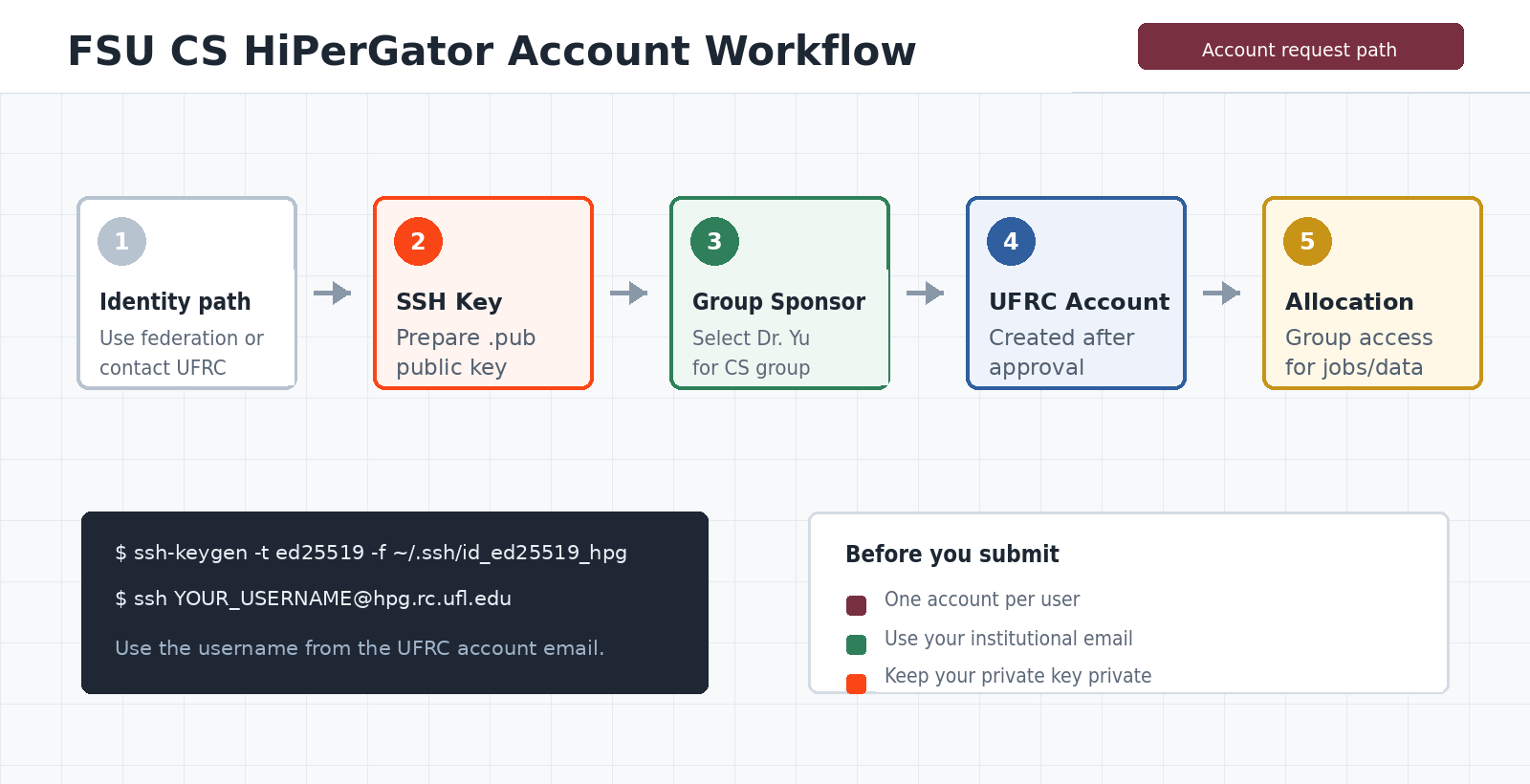
Use this guide to request a HiPerGator account and access to the FSU Computer Science Department allocation. New applicants should select Dr. Weikuan Yu as Group Sponsor and name the professor they work with in Comments. Applicants without federated access should contact UFRC Support before applying.
Last reviewed September 30, 2026.
Before you use HiPerGator
Quick path
Know the specific professor you work with so you can name them in Comments.
Generate an SSH key pair locally and keep the private key private.
Use your institutional credentials when federation is available; otherwise ask UFRC Support which account path applies.
After approval, confirm access to the department group or request membership for an existing account.
Choose your identity path
Select Federated Account Request, choose Florida State University, and use your FSU credentials and FSU email.
If your home institution appears in the UFRC federated liaison list, select it and use that institution's credentials and email.
Contact UFRC Support and the FSU professor you work with before applying. UFRC will confirm the correct account path for your institution.
Department allocation
This shared allocation supports approved users across the FSU Computer Science Department.
NCPU
NGPU
Blue storage
Orange storage
NCPU and NGPU are UFRC allocation units; Blue and Orange are storage systems. See the current UFRC documentation for their definitions and usage limits.
fsu-compsci-dept.Before applying
If Dr. Yu or fsu-compsci-dept is not available in the form, contact the department administrator or UFRC Support instead of selecting another sponsor or group.
SSH public key
ssh-keygen -t ed25519 -C "your_institutional_email" -f ~/.ssh/id_ed25519_hipergator
cat ~/.ssh/id_ed25519_hipergator.pubssh-keygen -t ed25519 -C "your_institutional_email" -f $env:USERPROFILE/.ssh/id_ed25519_hipergator
type $env:USERPROFILE/.ssh/id_ed25519_hipergator.pub
Upload the file ending in .pub. Never upload or send the private key. The public key may be required even when you plan to start with a browser-based interface.
Submit the request
fsu-compsci-dept, and use cs-hipergator@fsu.edu as the sponsor contact email.I am a [FSU student/staff member OR student/researcher at HOME INSTITUTION] working with Professor [FULL NAME]. I am requesting HiPerGator access to fsu-compsci-dept for [PROJECT, COURSE, OR PURPOSE]. My institutional email is [EMAIL].Replace every bracketed field. External applicants should use their home institution and institutional email.
After approval
Complete any required onboarding or training, then test an interactive login and a small job.
ssh -i ~/.ssh/id_ed25519_hipergator YOUR_HIPERGATOR_USERNAME@hpg.rc.ufl.eduUse the HiPerGator username from your account email. It may differ from the local part of your institutional email address.
Follow the current UFRC network guidance. Federated SSH access may require eduVPN before connecting.
Confirm your default group, Slurm account, storage path, and the department group you were approved to use.
Department membership
fsu-compsci-dept.FAQ
Name the professor whose project, course, or research work you are joining. This may be different from the Group Sponsor. If you work with more than one professor, list the primary contact first.
No. If your account already exists, request group membership through UFRC Support and provide your existing HiPerGator username.
Contact the department administrator or UFRC Support and state that you are requesting access to fsu-compsci-dept. Do not select another sponsor or group.
Yes. Use a federated home-institution account when available. If federation is unavailable, ask UFRC Support which account path applies. The FSU professor you work with should confirm the work before you apply.
Official references